Each of these tasks used to end in Ads Manager: build a carousel, spread creatives across ad sets in something other than “all to all” or “one each”, move a finished upload to another ad account. In Dolphin{cloud} all of it now happens in the upload wizard. Here are the 3 features in order.
Carousel
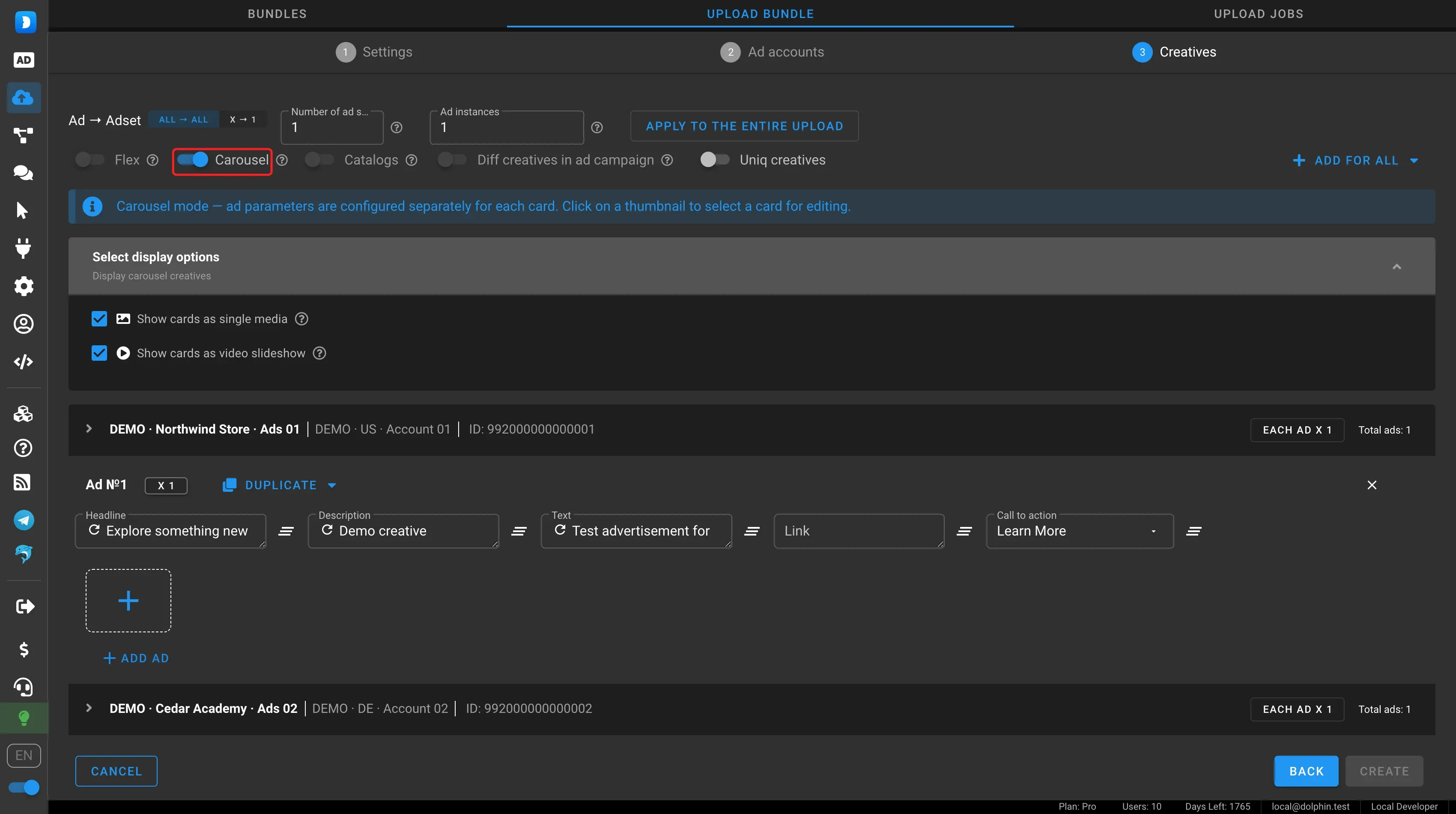
The Carousel toggle arrived in release 09.07. It sits on the “Creatives” step of the upload wizard, next to Flex and “Languages”.
How to build a carousel:
- Open “Create ads” → “Upload bundle”, choose a bundle and ad accounts.
- On the “Creatives” step turn on Carousel. The service tells you that ad settings are now set per card.
- In “Select display options” choose how to show the cards: “Show cards as single media” and “Show cards as video slideshow”.
- Add creatives. Click a card thumbnail to give it its own headline, description, text, link and deep link.
- Start the upload. The carousel is built on every selected ad account.
Carousel works together with X → 1 distribution, so card sets can be spread across ad sets too.
X → 1 creative distribution
Release 28.07 added an Ad → Adset switch to the “Creatives” step with 2 positions: “ALL → ALL” and “X → 1”. In the second mode you set the number X and the service puts X creatives in each ad set.
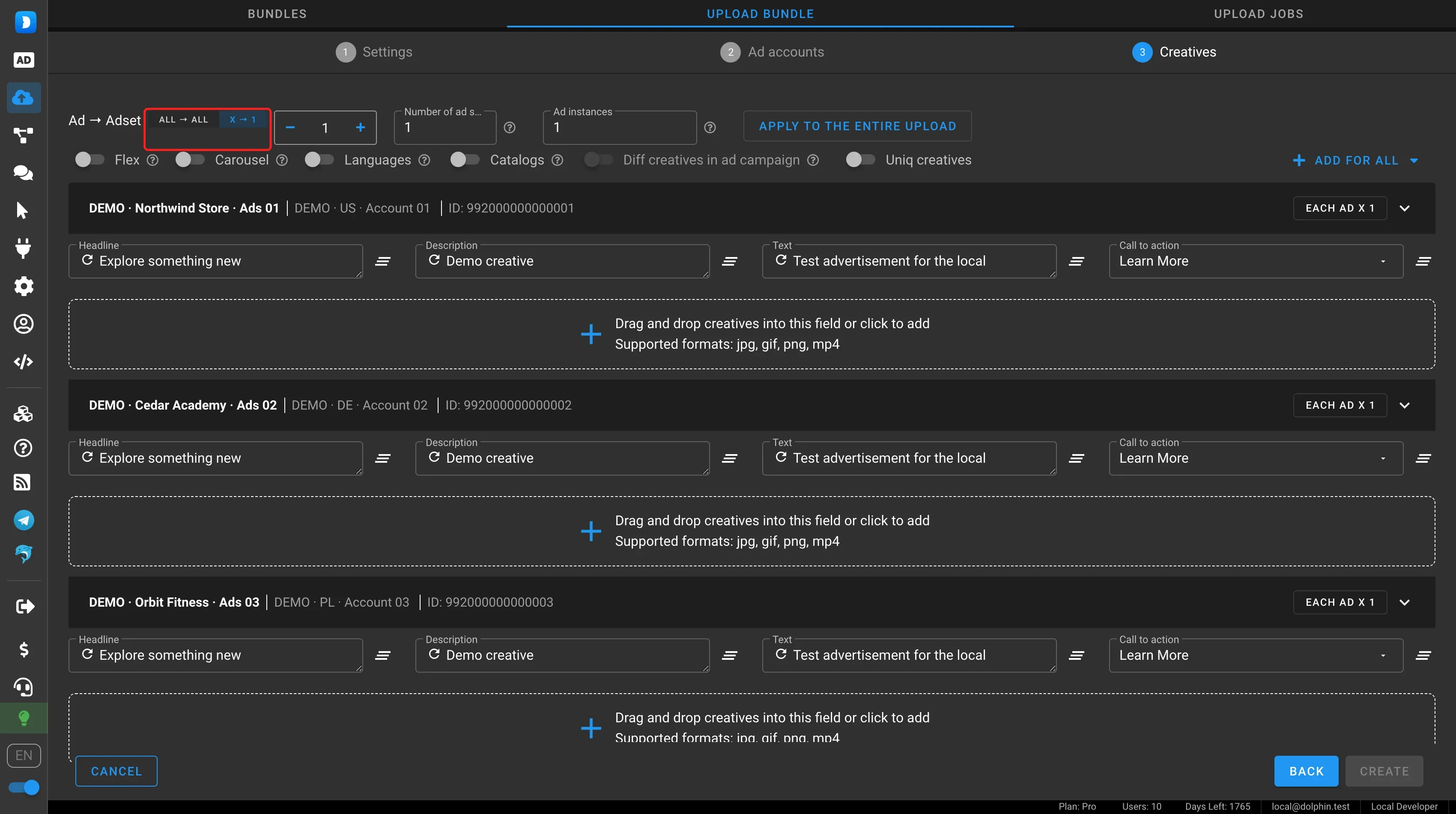
Creatives are handed out in a circle: when the list ends, the service starts over. For example, 2 ad sets, 5 creatives and 3 → 1:
| Ad set | Creatives |
|---|---|
| Ad set 1 | 1, 2, 3 |
| Ad set 2 | 4, 5, 1 |
With the “Diff creatives in ad campaign” toggle the circle continues from campaign to campaign, so each campaign gets its own set: 1-2-3, then 4-5-1, then 2-3-4.
One detail: if the number of creatives divides evenly by X, the sets repeat. With 2 creatives and 4 → 1 every campaign gets 1-2-1-2. For different sets with few creatives, pick an X the creative count does not divide by, or upload more files. More examples and the 1-1-10 and 1-4-2 setups are in Setups and X → 1 distribution.
Do not confuse this mode with the “Uniq creatives” toggle next to it: that one processes the files themselves and does not decide which creative goes to which ad set.
Edit and re-upload
An upload used to be delete-only after it ran. To change even one field you rebuilt the bundle, creatives, links and deep links. Since release 28.07 an upload can be edited after it has run.
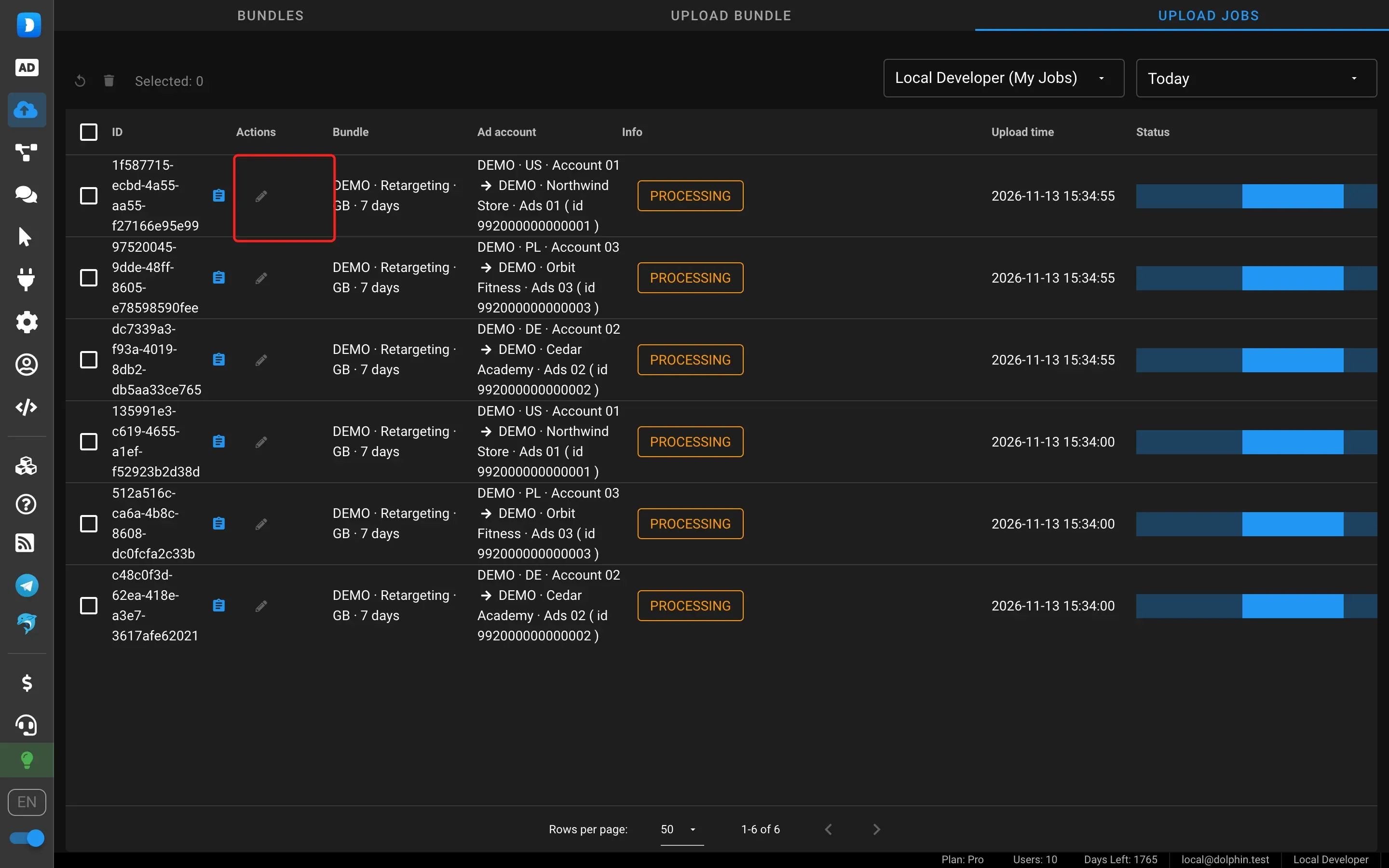
How to re-upload:
- Open “Create ads” → “Upload jobs”.
- In the “Info” column check the status and the error text from Facebook if the upload failed.
- In the “Actions” column click the “Edit and re-upload” pencil.
- Change what you need: account, ad account, beneficiary, Page, app, pixel or link parameters. The set of fields depends on what the upload uses. The ad account, Page and pixel fields support search by ID.
- Click “Save and re-upload”.
Creatives and links stay as they were. The beneficiary can be left empty: the hint in the field says Dolphin{cloud} will create it.
The feature has 2 uses:
- the upload failed. For example, the ad account is disabled or the Page is unavailable. Pick a working ad account or another Page and re-upload;
- the upload succeeded. Pick another ad account and run the same bundle there. This is a scaling tool: you found a working bundle and roll it out to other ad accounts in a couple of clicks.
So do not delete failed uploads right away: all the preparation is saved in them. Admins and team leads can open and re-upload a teammate’s upload, see What is new in Dolphin{cloud} in autumn 2026.
Launching on your schedule
The upload wizard has 2 more settings for launching ads when you need:
- upload with campaigns off. A switch in the advanced settings when you choose a bundle: ads are created and go through Meta review, and you turn them on yourself;
- launch at a set time. Ads are created right away and start at the set time in the ad account time zone. The “Timezone” filter in “Ad accounts” helps you pick ad accounts in the right time zone.
FAQ
How do I make a carousel in Dolphin{cloud}?
On the “Creatives” step of the upload wizard turn on Carousel, choose the card display options and give each card its own creative, text and link. The carousel is built on every selected ad account.
What does X → 1 distribution mean?
The service puts X creatives in each ad set and goes round the creative list. With “Diff creatives in ad campaign” each campaign gets its own set.
Can I re-upload a bundle to another ad account without uploading creatives again?
Yes. Open the upload in “Upload jobs”, click “Edit and re-upload”, change the ad account and click “Save and re-upload”. Creatives and links are kept.
What can I change when editing an upload?
Account, ad account, beneficiary, Page, app, pixel and link parameters. The set of fields depends on what the upload uses.
Summary
Carousel, X → 1 and re-uploads cover 3 tasks that used to need manual work in Ads Manager. Try building an upload in Dolphin{cloud} and set its languages in advance in a multilingual bundle. The full list of the half-year changes is in What is new in Dolphin{cloud} in spring and summer 2026.